Plugins in ChatGPT
Connect ChatGPT to the tools you use every day, like Slack, SharePoint, Airtable, Google Drive, and more. Complete tasks, bring in context, and do more directly in the conversation.
Select plugins available in all plans.

Do more in ChatGPT with plugins
Take action across your tools
Use select plugins to complete tasks—like running workflows in Jira, creating charts in Figma, or enriching a lead in Clay—all within ChatGPT.
Work with the right context
Plugins pull in live details across your CRM, codebase, documents, and analytics tools so ChatGPT can answer with accurate, up-to-date information.
Stay in control of your workspace
Admins decide which plugins are available, who can use them, and what actions they can take—all with clear permissions and visibility into how plugins access data.
See it in action
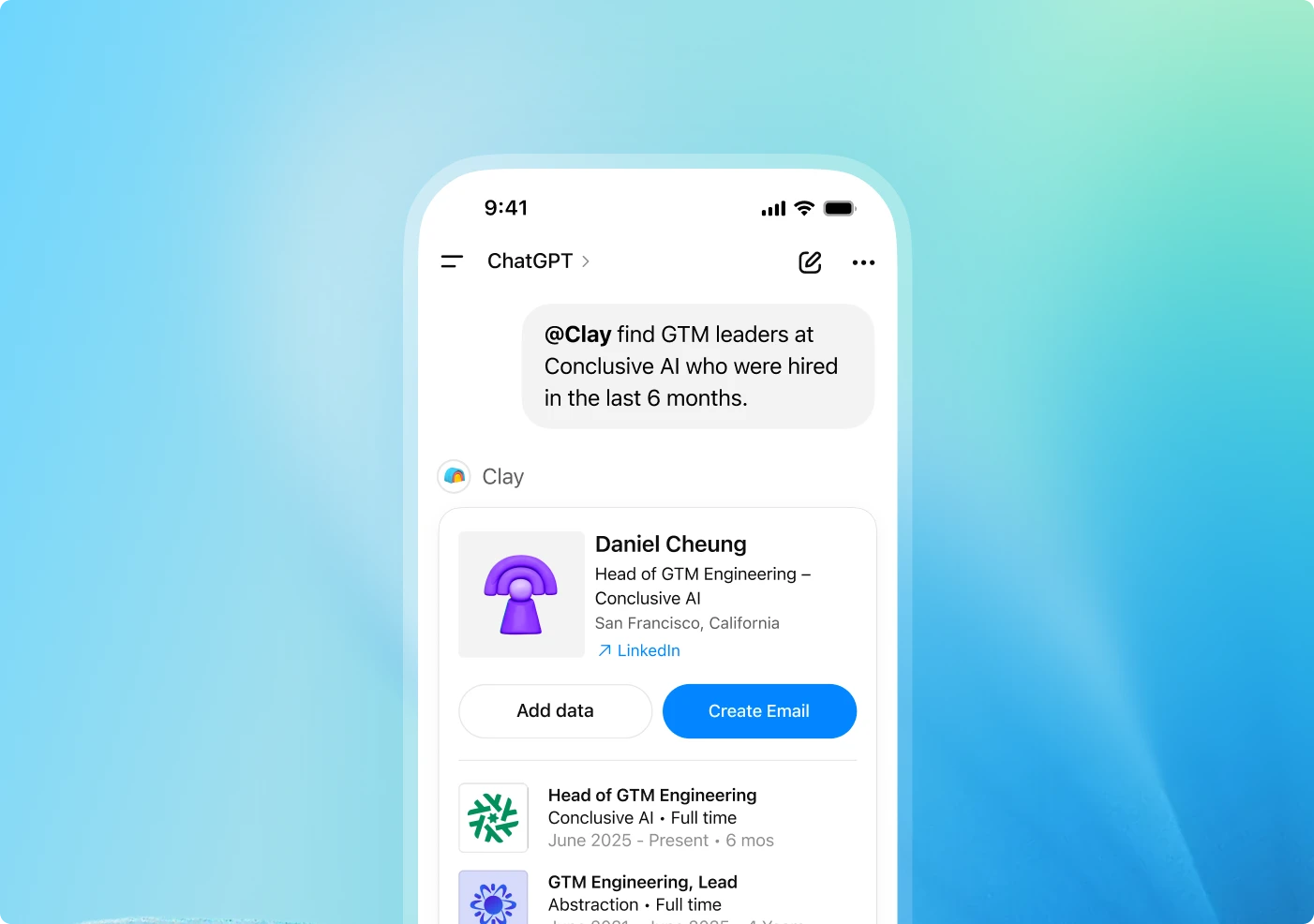
How it works
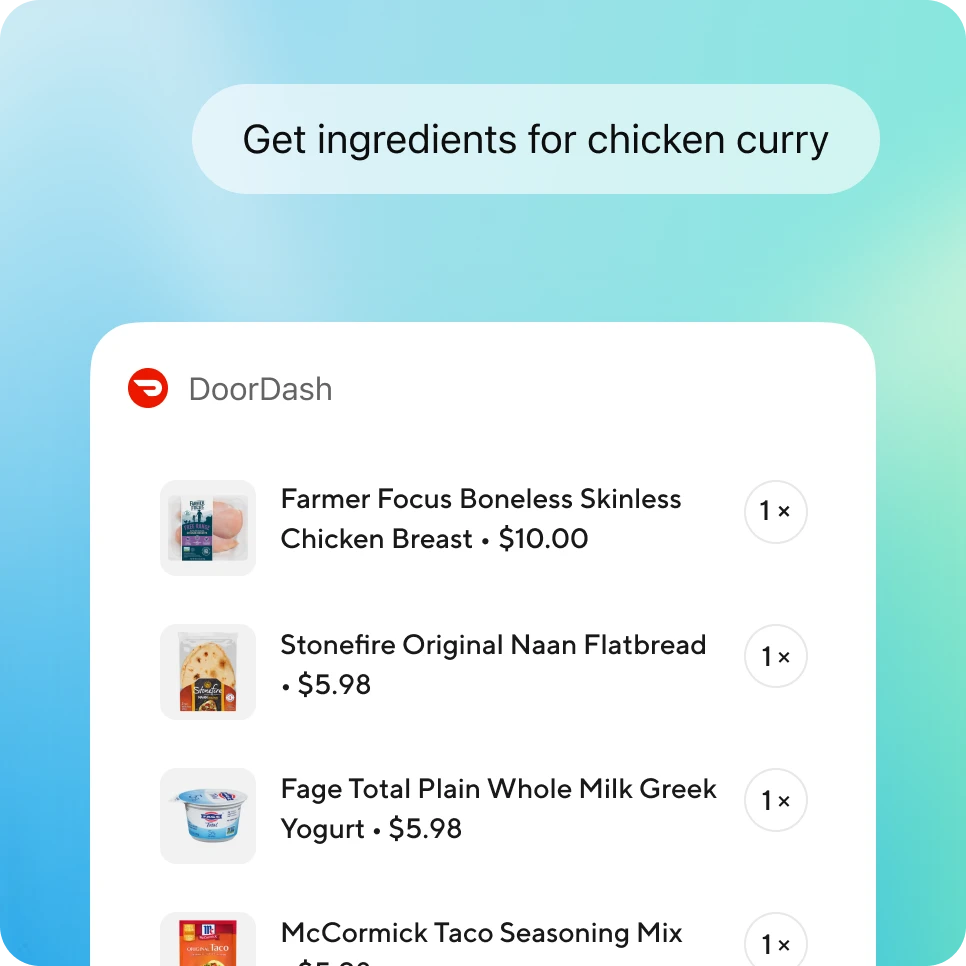
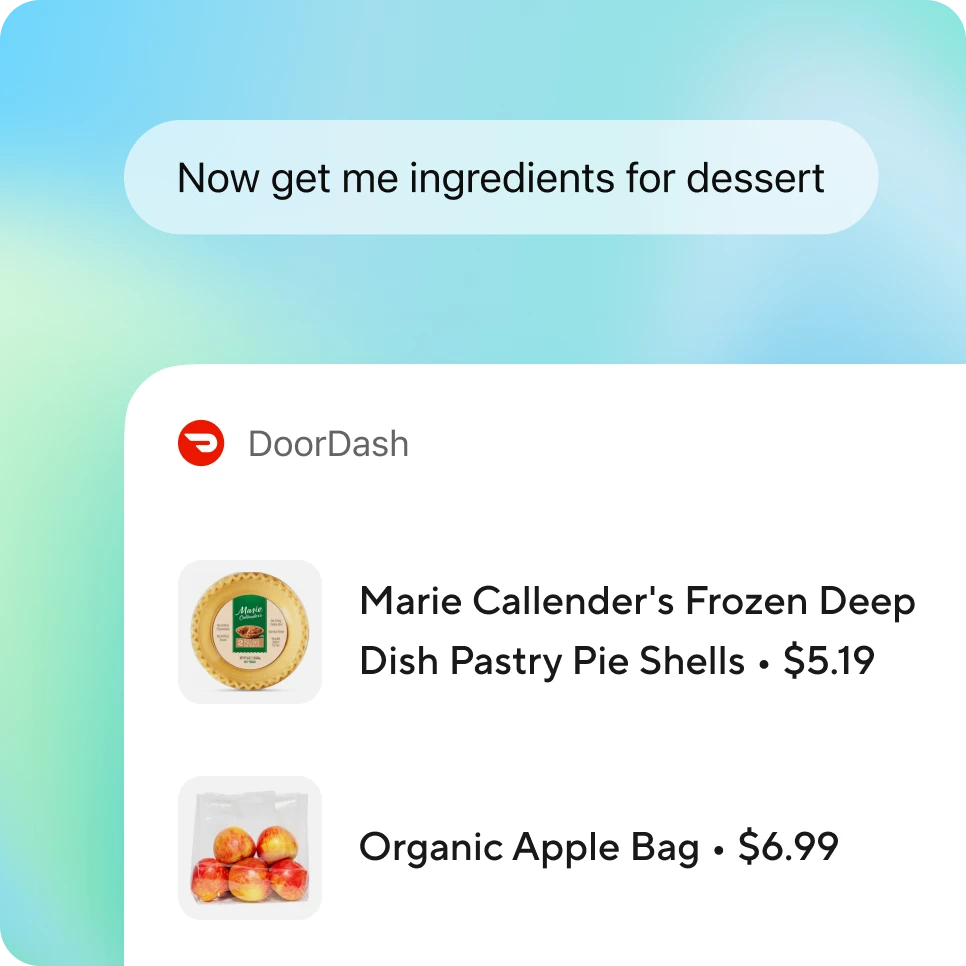
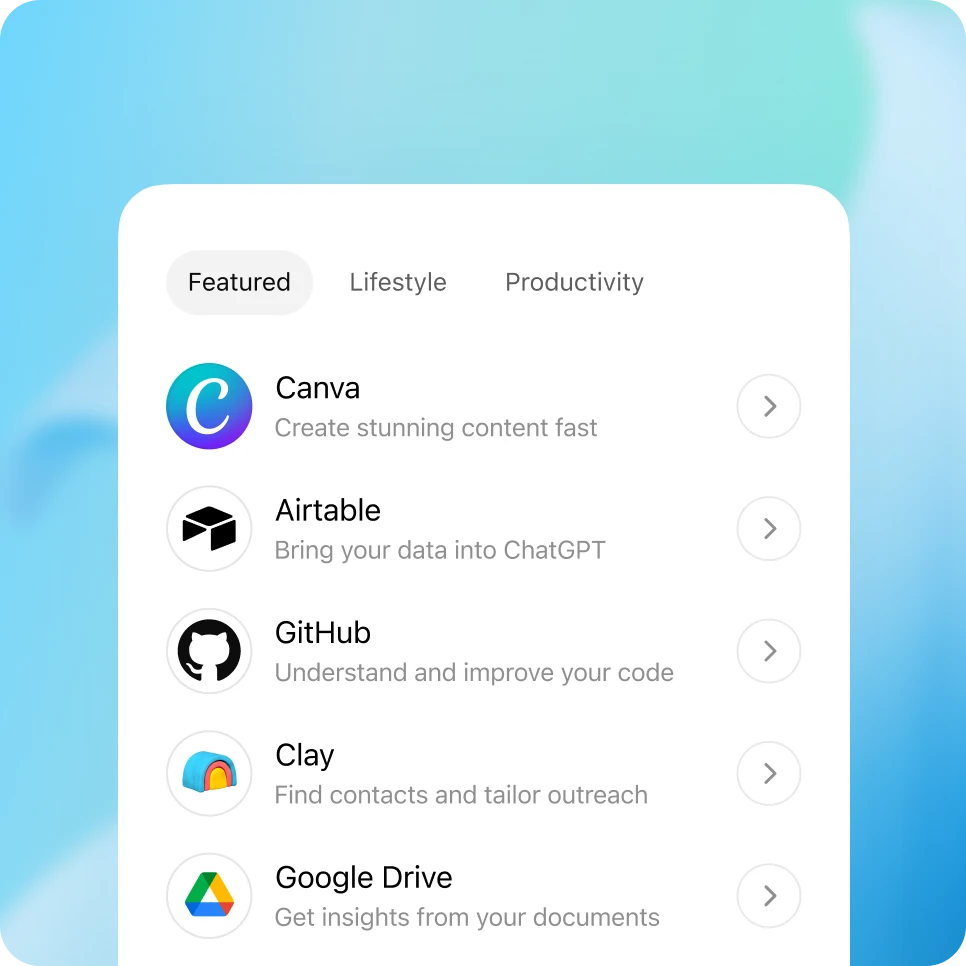
Go to your ChatGPT sidebar or visit chat2api.002620.xyz/plugins to browse and add plugins. On Enterprise and Edu workspaces, administrators must first enable plugins in Workspace settings before users can connect them.

Discover more plugins in ChatGPT
Explore a growing directory of plugins for work, creativity, research, and everyday tasks. New plugins are added regularly, and your company can add its own—expanding what’s possible in ChatGPT.

Security and controls
Plugins are designed to give administrators clear oversight and control across their workspace:
Workspace permissions: Enterprise and Edu administrators can decide which plugins are available and who can use them with role-based controls. Easily enable or disable specific plugins across your workspace.
Transparent capabilities: Every plugin discloses the types of data it can access, the actions it can take, and who built it. When connecting a plugin, users review these permissions before anything is shared.
Audit logs: Track usage and activity through the Compliance Logs Platform—including tool calls, files accessed, and relevant conversation context—for monitoring and review.
Data privacy: ChatGPT only accesses information the user can already see in the connected plugin. For ChatGPT Business, Enterprise, Edu, and ChatGPT for Teachers, none of this data is used to train models by default. Plus and Pro users can manage data-use preferences in their settings.
Frequently asked questions
Add approved plugins from the directory in your sidebar. Once added, select a plugin from the Tools menu or type “@” followed by the plugin name in chat (for example: “@Airtable, pull next steps from my meetings this week”).